How To Sign Up
How to register to receive RamALERT Text and/or Voice message service
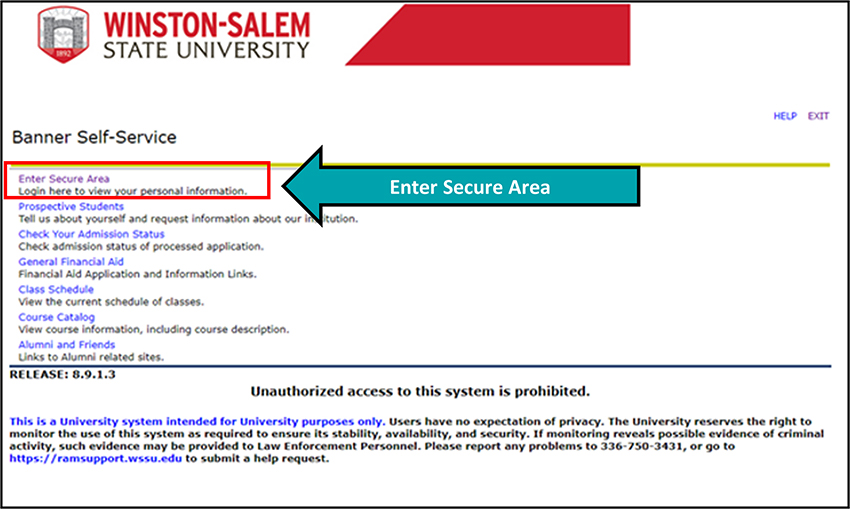
Step One: Visit Banner RAMS Online and choose Enter Secure Area.
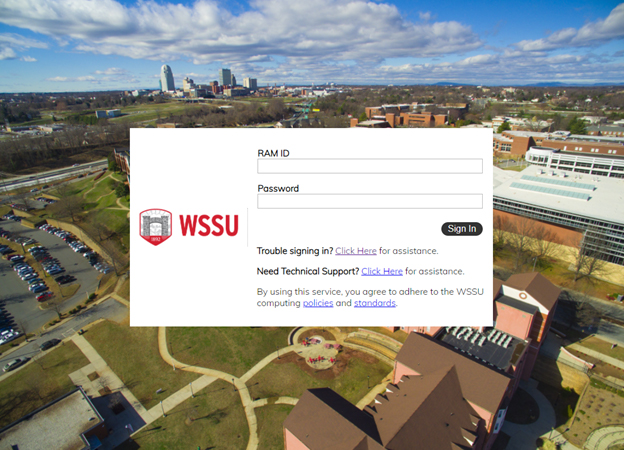
Step Two: Enter your RAM ID and Password. Click Sign In when done.
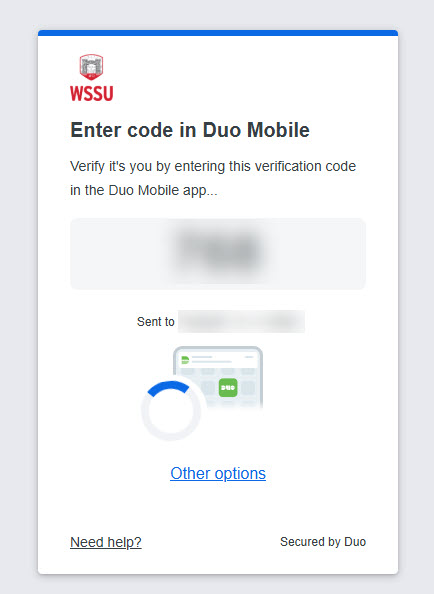
Step Three: Complete DUO Authentication if prompted.
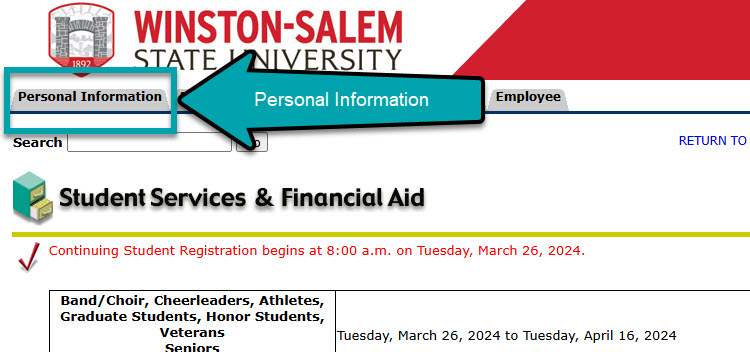
Step Four: Click on the 'Personal Information' tab.
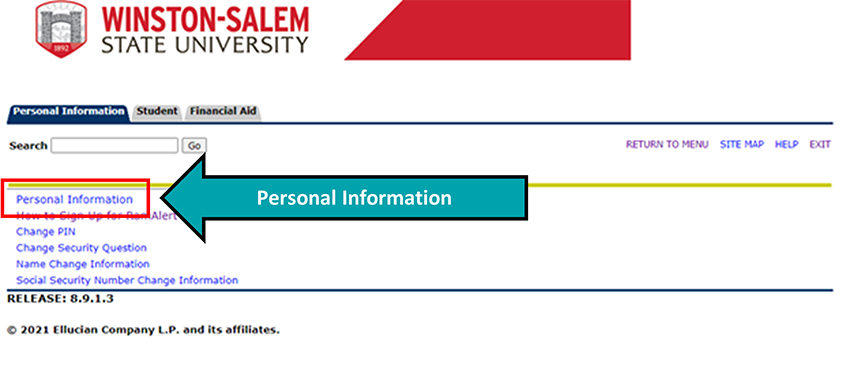
Step Five: Choose the 'Personal Information' link.
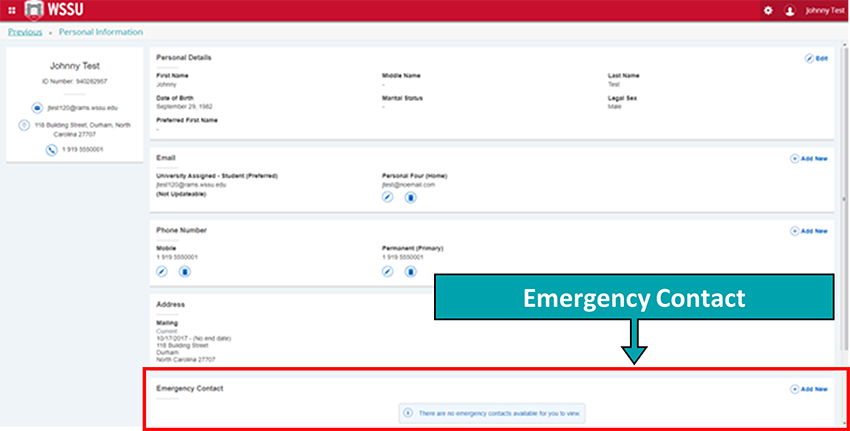
Step Six: Scroll down to the ‘Emergency Contact’ tile. Choose ‘Add New’ to begin adding a contact.
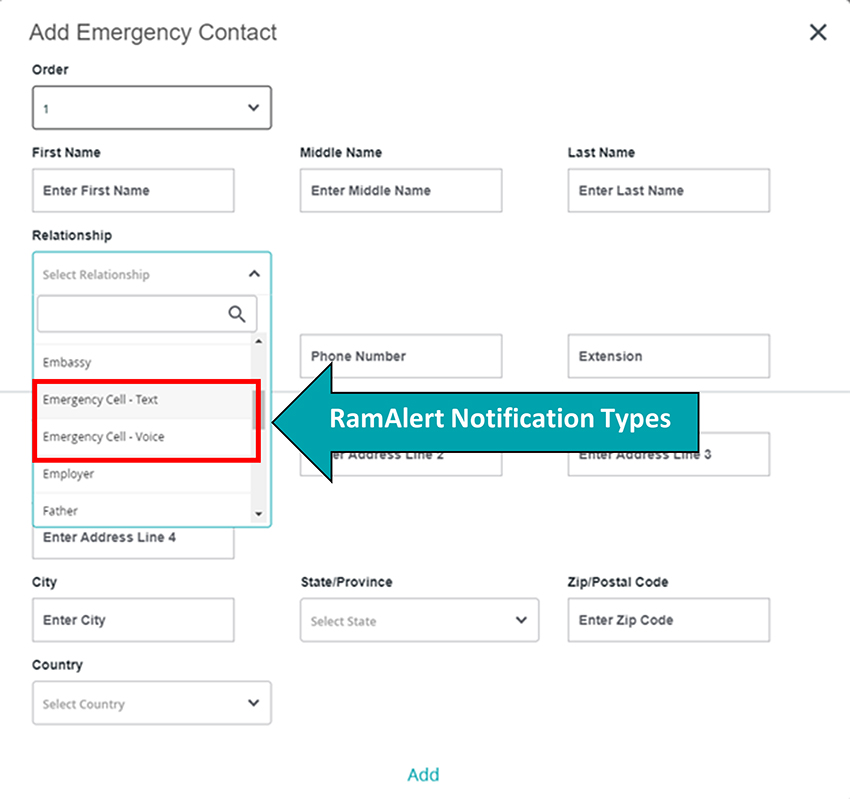
Step Seven: Enter your contact information.
To receive RamALERT SMS/Text Messages - Select “Emergency Cell – Text” from the drop down box of the Relationship field. Enter your First & Last name in the appropriate fields, and your cell number in the Phone Number field. When you are done, choose 'Add' at the bottom.
To receive RamALERT Voice Messages - First repeat step 6, then select “Emergency Cell – Voice” from the drop down box of the Relationship field. Enter your First & Last name in the appropriate fields, and your mobile telephone number in the Phone Number field. When you are done, choose 'Add' at the bottom.
** To receive both text AND voice notifications, repeat steps 6 and 7.